Table of Contents
1. Text Formatting Shortcuts
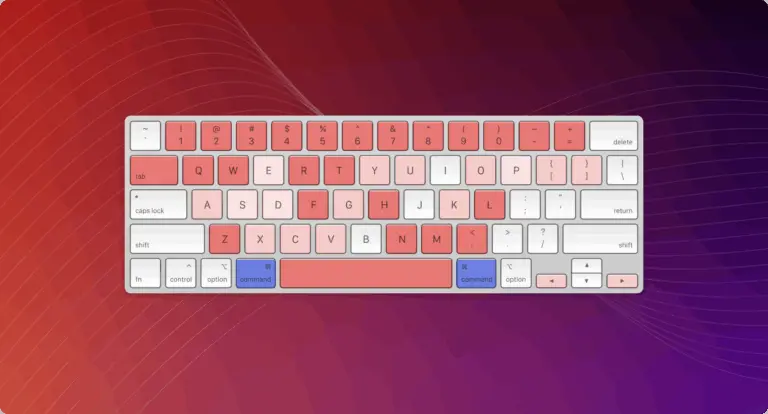
- Ctrl + B – Toggle bold formatting
- Ctrl + I – Toggle italic formatting
2. Layout and Display Controls
- Ctrl + Alt + D – Toggle dark quote box
- F – Open fullscreen mode (Fullscreen Studio)
- T / Shift + T – Increase / decrease quote text size
- B / Shift + B – Switch quote box style forward/backward
- G / Shift + G – Switch to next/previous font
3. Template and Aspect Ratio Switching
- Ctrl + ← / → – Switch to previous or next template
- Alt + 1 to 5 – Quick aspect ratio selection:
- 1 – 1:1
- 2 – 16:9
- 3 – 9:16
- 4 – 4:5
- 5 – 3:4
4. Quick Actions for Background and Avatar
- Alt + R – Pick a random background image
- Alt + A – Pick a random avatar image
5. Download and Help
- Ctrl + Alt + S – Download the quote as a PNG image
- Ctrl + K – Open the keyboard shortcuts guide
Usage Notes
Shortcuts only work when you’re not typing in an input, textarea, or select field. To switch templates, change image ratios, or toggle visual modes quickly, make sure the cursor is outside input fields.
Mastering these shortcuts helps you save time, work more smoothly, and create high-quality quote images in just seconds.
Give it a try now and experience the difference!







Comments