1. Use Case: Show On-Sale Products
Let’s say you want users to immediately see a list of discounted products (/on-sale) every time they open the search modal. This boosts engagement and encourages product discovery.
2. JavaScript Snippet
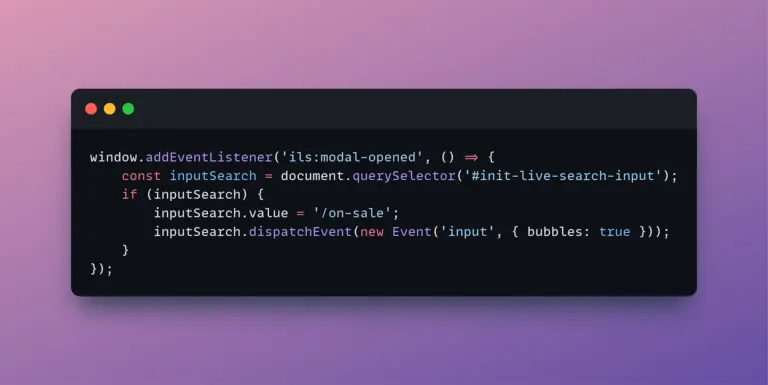
Just listen for the ils:modal-opened event and insert the slash command into the input field:
window.addEventListener('ils:modal-opened', () => {
  const inputSearch = document.querySelector('#init-live-search-input');
  if (inputSearch && !inputSearch.value) {
    inputSearch.value = '/on-sale';
    inputSearch.dispatchEvent(new Event('input', { bubbles: true }));
  }
});
3. Advanced Customization with Conditions
You can expand the code to support other conditions:
- Price range:
/price 100 500 - Search by SKU:
/sku ABC - In-stock only:
/stock
Just change the value of inputSearch.value based on your use case.
4. Why Use Slash Commands Instead of Fetching API Directly?
Slash commands are a powerful feature in Init Live Search. They allow you to trigger complex REST API queries without writing display logic yourself. Once the command is inserted into the input, Init Live Search handles the search, loading, and rendering processes automatically and consistently.
5. Further Ideas
- Change product display based on time of day (e.g.
/on-salein the morning,/price 1000 5000at night) - Randomize each time the modal opens:
['/on-sale', '/stock', '/price 100 1000'] - Fetch product data manually from
/productendpoint and render a fully custom UI
You can use JavaScript to directly call the API like:
/wp-json/initlise/v1/product?on_sale=1&in_stock=1
…and render results in your own layout (grid, slider, etc). This approach uses Init Live Search as a **data layer** for your frontend while keeping plugin updates intact.
To further customize the returned results (e.g. filter by ACF field or custom logic), you can use PHP filters — see the full guide here: How to Use Filters in Init Live Search
Conclusion
Init Live Search goes beyond traditional keyword search. With slash commands and event hooks like ils:modal-opened, you can turn the search modal into a dynamic shopping interface — tailored to your content and goals — all with just a few lines of code.










Comments