
However, if you want to fine-tune it to better suit your specific needs, this article will walk you through all configuration options across the three main tabs: General Settings, Synonyms, and Analytics.
1. Search Triggers – How to launch the search modal
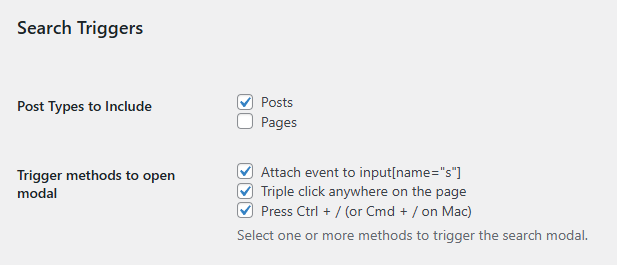
Post Types to Include: Choose the content types to be included in search results, such as posts and pages.
Trigger methods to open modal: Select how users can open the search modal:
- Attach to search input fields with
name="s" - Triple-click anywhere on the page
- Use the keyboard shortcut
Ctrl + /orCmd + /on Mac
2. Search Behavior – How search works
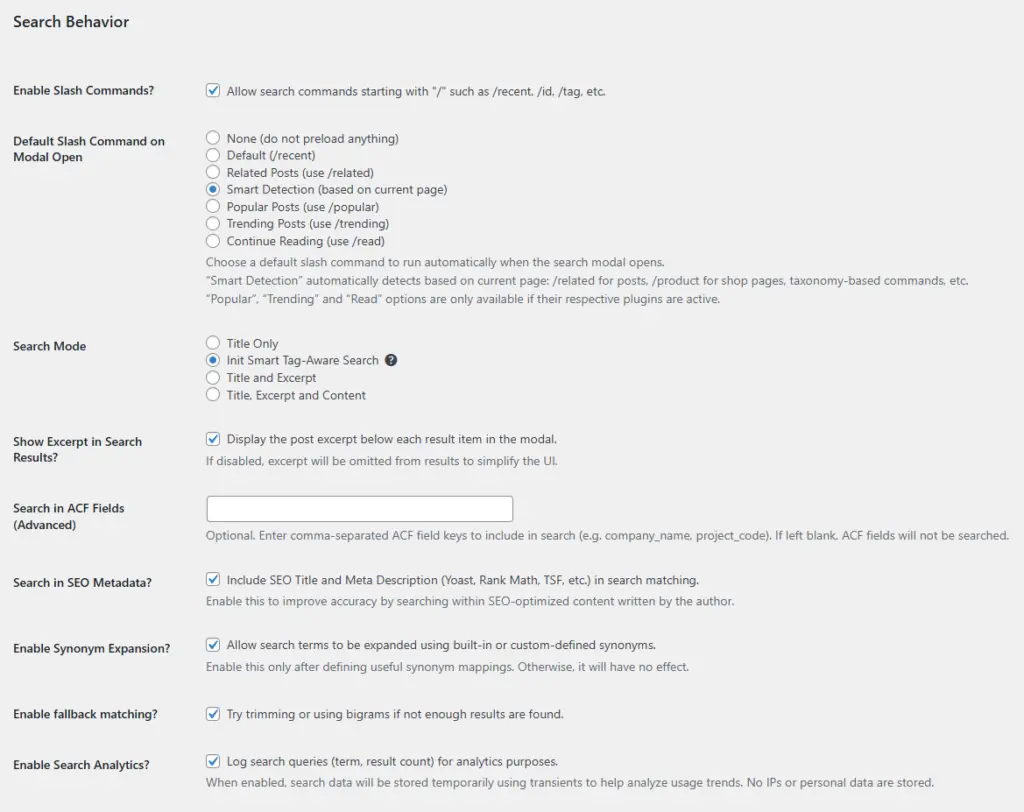
Enable Slash Commands: Allow users to use slash commands starting with /, such as /recent, /tag, or /trending.
Default Slash Command on Modal Open: Define which slash command should run automatically when the search modal opens. Options include:
- None (load nothing by default)
- Related Posts (
/related) - Smart Detection (based on current page context)
- Popular Posts (
/popular) - Trending Posts (
/trending) - Continue Reading (
/read)
Search Mode: Define the data scope for search queries:
- Title Only: Search within titles only
- Init Smart Tag-Aware Search: Search titles, excerpts, and tags for high relevance
- Title and Excerpt: Include title and excerpt fields
- Title, Excerpt and Content: Full content search (may affect performance on large sites)
Show Excerpt in Search Results: Show a short excerpt below each result title.
Search in ACF Fields (Advanced): Enter ACF field keys to include in search, such as project_code or company_name.
Search in SEO Metadata: Include SEO meta descriptions (from plugins like Yoast, Rank Math) to improve matching accuracy.
Enable Synonym Expansion: Expand search results using synonyms you define.
Enable fallback matching: Automatically use bigrams or relaxed matching when no exact results are found. Useful for typos or misspellings.
Enable Search Analytics: Log search queries and result counts for behavior analysis. Data is stored temporarily without collecting IPs.
3. Performance & UX – Speed and user experience
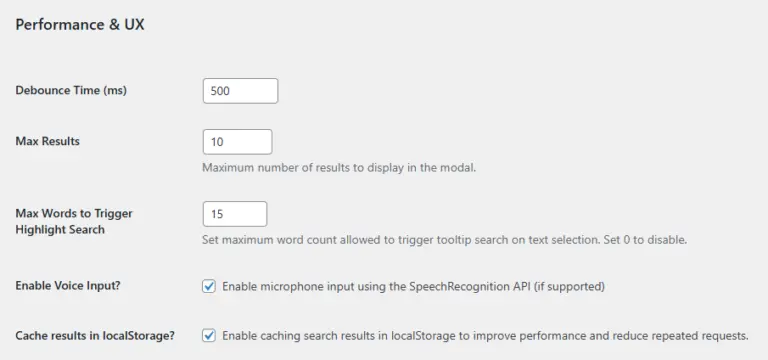
Debounce Time (ms): Delay between user input and sending the search request. Default is 500ms to reduce request load.
Max Results: Maximum number of results displayed in the modal.
Max Words to Trigger Highlight Search: When selecting text, how many words will trigger a quick search suggestion. Set to 0 to disable.
Enable Voice Input: Activate voice search if supported by the browser’s SpeechRecognition API.
Cache results in localStorage: Temporarily store results in the browser for faster response on repeated queries.
4. Styling & Suggestions – Appearance and keyword suggestions
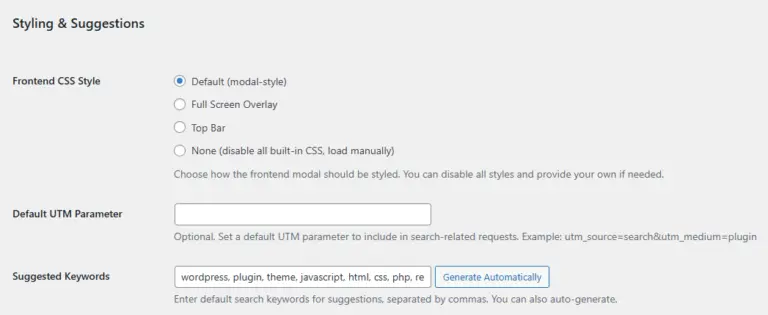
Frontend CSS Style: Choose how the search interface appears:
- Default (modal-style): Centered modal window
- Full Screen Overlay: Covers the entire page
- Top Bar: Displays as a top search bar
- None: Disable all built-in styles (for developers building custom UIs)
Default UTM Parameter: Automatically append UTM parameters to search requests for tracking with Google Analytics or other tools.
Suggested Keywords: Predefined search suggestions for users. You can enter manually or use the auto-generate button to populate them based on existing content.
5. Synonyms – Expanding search with custom vocabulary
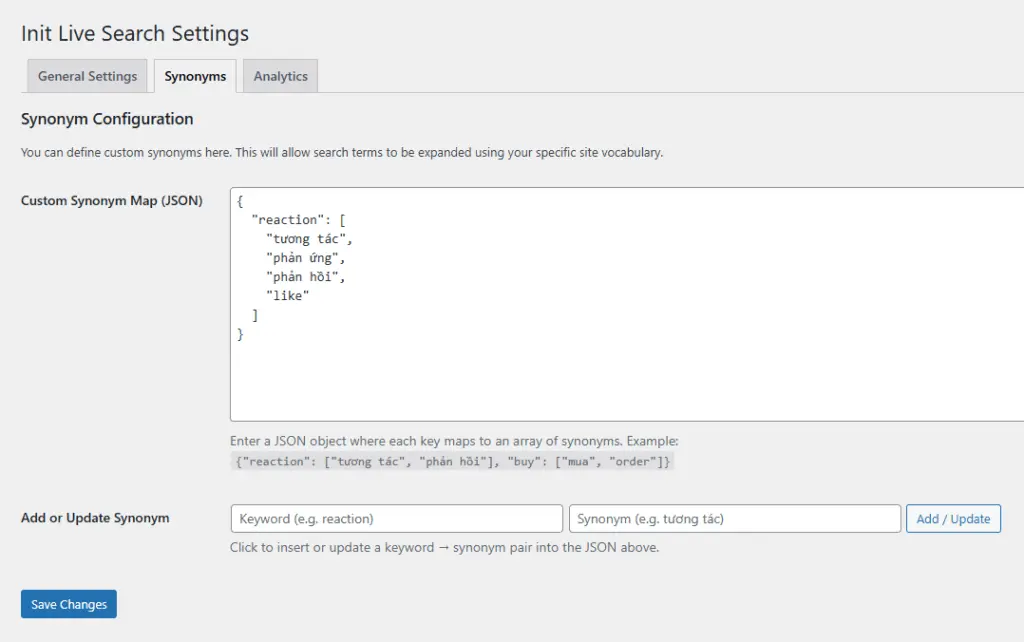
The Synonyms tab allows you to define custom synonym groups, enabling the system to understand varied ways users may express the same concept. This is especially useful for sites with technical, localized, or branded language.
Custom Synonym Map (JSON): Use a valid JSON object where each key maps to an array of synonyms. Example:
{
    "reaction": [
        "tương tác",
        "phản ứng",
        "phản hồi",
        "like"
    ]
}
When users search for any term in the list, results will include all related terms defined in the group.
Add or Update Synonym: Use the form below the JSON editor to quickly insert or update a key → synonym pair without editing the code manually.
Note: This feature only works if Enable Synonym Expansion is activated in General Settings.
6. Analytics – Search activity logs
The Analytics tab shows recent user search queries. It works when Enable Search Analytics is turned on in the General Settings.
Search data is stored temporarily using WordPress transients. No IP addresses or personal data are collected.
The table includes:
- Time: When the query occurred
- Query: The search term entered
- Results: Number of matching results found
Group similar queries: Option to merge similar or repeated queries for cleaner statistics.
You can also Clear All Logs or Export CSV to download the data for further analysis.
Use cases: The Analytics tab helps you:
- Identify popular search terms
- Evaluate SEO keyword performance
- Get content ideas based on user interest
Conclusion
Init Live Search is built to perform well by default, with no configuration required. However, for site owners who want to enhance user experience, optimize performance, or personalize the system, exploring the available settings is highly recommended.










Comments