
This guide walks you through the complete process.
1. Creating a New Manga
Go to Manga → Add New from the WordPress admin menu. You’ll see a post editor with additional fields tailored for manga.
Basic Information
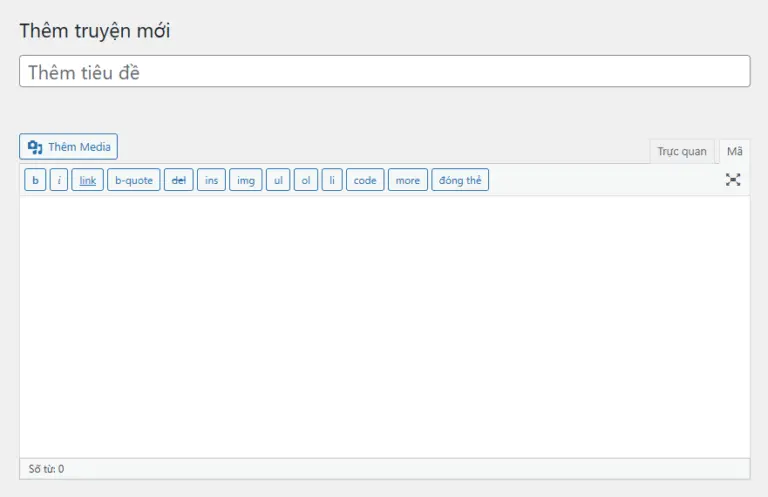
- Title: Name of the manga.
- Content: Description or synopsis of the series.
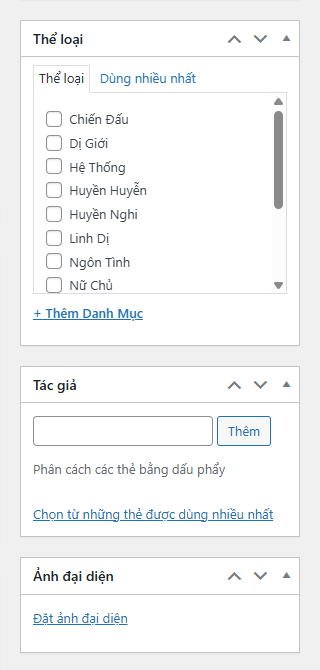
- Featured Image: Used as the manga cover.
- Genres: Select from the available taxonomy.
- Author: Enter the main author’s name.
- Team: (if enabled) Assign the scanlation team.
Manga Details Metabox
The “Manga Details” box appears below the editor and includes:
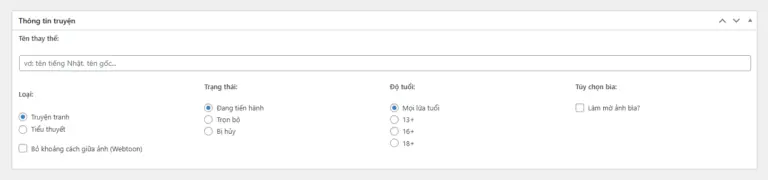
- Alternative Title: Original title or alternate name.
- Type: Comic or Novel.
- Webtoon: Remove spacing between images — great for vertical scroll.
- Status: Ongoing / Completed / Dropped.
- Age Rating: Choose age restriction (All / 13+ / 16+ / 18+).
- Blur Cover: Blur the cover image if the content is sensitive.
Additional Info
The Additional Information metabox appears in the sidebar, allowing you to enter more detailed metadata for the manga:
- Illustrator: Name of the illustrator/artist.
- Designer: Cover or character designer.
- Country: Country of origin or publication (e.g., Japan, Korea, Vietnam…).
- Publishing Schedule: Release frequency (Weekly, Daily, Monthly…).
These fields support smart autocomplete: as you type, the system will suggest previously entered values or default options (e.g., Weekly, Monthly, Japan…). This makes input faster and helps avoid typos.
Once completed, click Publish to publish the manga.
2. Adding Chapters
After publishing a manga, you’ll see a chapter manager right below the content area on the manga edit page.
Adding a New Chapter
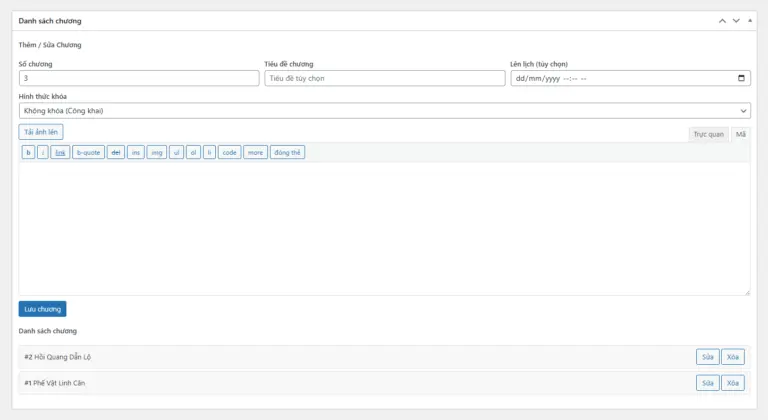
Under Add / Edit Chapter, enter the following details:
- Chapter Number: Numeric identifier (supports decimal like 1.5).
- Chapter Title: Optional title for the chapter.
- Schedule Time: Set a future publish date (optional).
- Lock Type: Choose how the chapter is restricted:
- None (public)
- Require Login
- VIP Only
- Require Coin
- Require Cash
- Require Level
- Lock Value: Amount of coin/cash or minimum level required.
Below that is a rich text editor to input chapter content. You can insert text or images as needed.
Click Save Chapter to store it in the system.
Chapters List
All existing chapters are shown in the Chapters List section. You can:
- View chapter numbers and titles
- Edit chapter content or settings
- Delete unwanted chapters
The list is loaded dynamically using JavaScript for smooth interaction without page reloads.
Conclusion
Init Manga’s chapter management system is built for speed, flexibility, and control. With support for taxonomies, metadata, and fine-tuned content locking, you can publish and monetize manga content professionally.
Make sure your license is activated to unlock all advanced features before you begin.










Comments