How to Customize Init Live Search UI (v1.6+)
Init Live Search supports three UI customization methods—suitable for beginners and advanced users alike:
1. Use a built-in style preset
Go to Settings → Init Live Search and look for the Frontend CSS Style option. You’ll find four choices:
- Default (modal-style) – The default modal interface
- Full Screen Overlay – Fullscreen search experience (
style-full.css) - Top Bar – Spotlight-style floating search bar (
style-topbar.css) - None – Disable all CSS so you can build your own UI
Choose the style you want and click Save Changes—the plugin will load the corresponding CSS file.
Note: You can override these styles via a custom file in your theme, or disable all CSS and build everything from scratch.
2. Override CSS with a file inside your theme
Create a file at the following path:
wp-content/themes/your-theme/init-live-search/style.cssIf you selected “None (disable all built-in CSS)”, the plugin will look for this file and load it automatically (if present).
3. Disable all CSS and build your own UI
This is the most powerful option, giving full control to developers.
Enable “No CSS” mode
Select None (disable all built-in CSS) in the Frontend CSS Style section, then click save.
Init Live Search will now skip all CSS enqueueing, allowing you to define everything manually (usually in your theme’s style.css).
4. Basic HTML structure
When the modal opens, you’ll see the following markup:
<div id="ils-modal" class="dark">
  <div class="ils-overlay"></div>
  <div class="ils-content">
    <div class="ils-inner">
      <button class="ils-search"></button>
      <button class="ils-close"></button>
      <input class="ils-input" type="text" />
      <div class="ils-suggestions">
        <span class="ils-suggest-pill active">Suggested keyword</span>
      </div>
      <div class="ils-results">
        <a class="ils-item" href="#">
          <div class="ils-thumb"><img src="thumb.jpg" /></div>
          <div class="ils-meta">
            <div class="ils-title">Result title</div>
            <div class="ils-info">12/12/2025 · Post</div>
          </div>
        </a>
      </div>
    </div>
  </div>
</div>
5. Tips for building your own UI
- Use
#ils-modalas a CSS scope to avoid global conflicts - Use CSS variables like
--ils-bg,--ils-colorto support light/dark themes - Set modal width on
.ils-content(e.g.,max-width: 720px) - Use media queries like
@media (max-width: 600px)for responsive design - If using Tailwind, consider customizing prefixes or plugins to avoid class conflicts
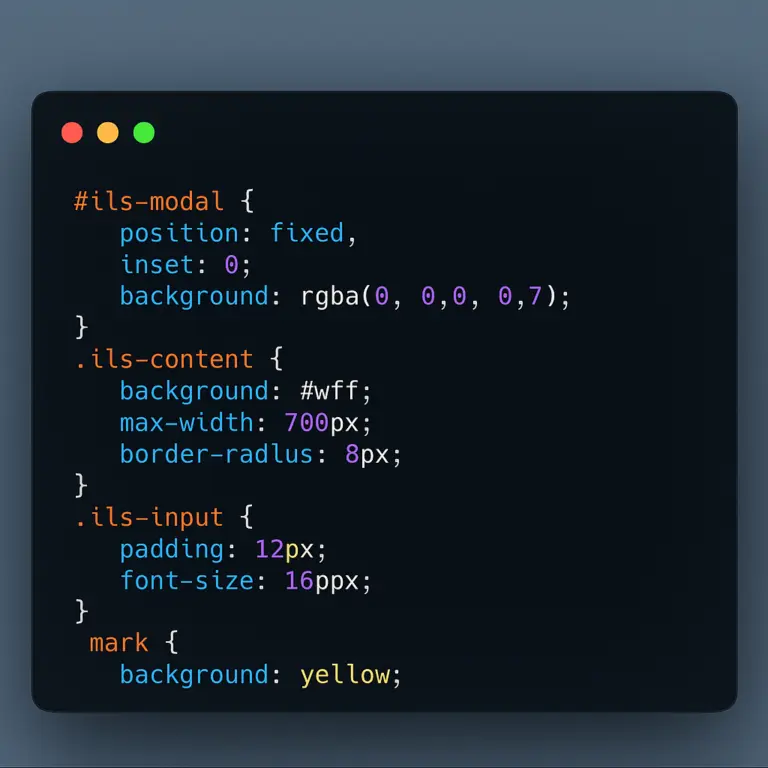
6. Sample CSS
You can copy and tweak the plugin’s original style.css, or build your own from scratch. Here’s a simple example:
#ils-modal {
  position: fixed;
  inset: 0;
  background: rgba(0, 0, 0, 0.6);
  display: none;
}
#ils-modal.open {
  display: block;
}
.ils-content {
  background: #fff;
  max-width: 720px;
  margin: 10% auto;
  padding: 20px;
  border-radius: 8px;
}
.ils-input {
  width: 100%;
  padding: 12px;
  font-size: 16px;
  border: 1px solid #ccc;
}
.ils-item {
  display: flex;
  align-items: center;
  padding: 12px;
  border-bottom: 1px solid #eee;
}
.ils-title {
  font-weight: bold;
}
Conclusion
Init Live Search is built to be “open”—allowing you full control over the UI. Whether you choose a preset, override styles, or build a fresh design from scratch, the plugin is designed to support any customization path.
Take full advantage to create a consistent, modern, and efficient search experience for your website.









Comments