
1. Install WooCommerce
Go to Plugins → Add New, search for WooCommerce, install, and activate it. After activation, the setup wizard will start automatically.
- Configure your store address.
- Set your default currency.
- Disable shipping options if you only sell virtual products.
Since the top-up system uses virtual products, no shipping or inventory configuration is required.
2. Configure Core WooCommerce Settings
Navigate to WooCommerce → Settings and review the following sections:
- General: Ensure currency and store information are correct.
- Products: Inventory management is optional if you only sell top-up packages.
- Accounts & Privacy: Require users to log in before checkout to ensure the balance is credited to the correct account.
Init Manga includes safeguards that prevent non-logged-in users from purchasing virtual top-up products.
3. Configure a Payment Gateway
Go to WooCommerce → Settings → Payments and enable your preferred payment gateway.
- Install and activate the payment gateway plugin.
- Enter API credentials or configuration details as required.
- Test transactions in sandbox mode before switching to live mode.
The top-up system credits Coin/Cash only after WooCommerce confirms a successful payment status. Make sure your gateway is properly configured and returns accurate order statuses.
4. Create a Top-Up Product (Coin/Cash Package)
Go to Products → Add New and configure the product as follows:
- Select product type: Simple product.
- Enable the Virtual checkbox.
- Set the Regular Price.
Once the product is marked as Virtual, the Coin & Cash metabox will appear.
- Enter the number of Coins to be credited.
- Or enter the amount of Cash to be credited.
- You may use either one or both fields.
A product is recognized as a valid top-up package only if:
- It is marked as Virtual.
- Coin or Cash value is greater than 0.
If you assign Coin/Cash values to unrelated products, the system will still credit the balance. Use this feature strictly for top-up packages.
5. Frontend User Flow
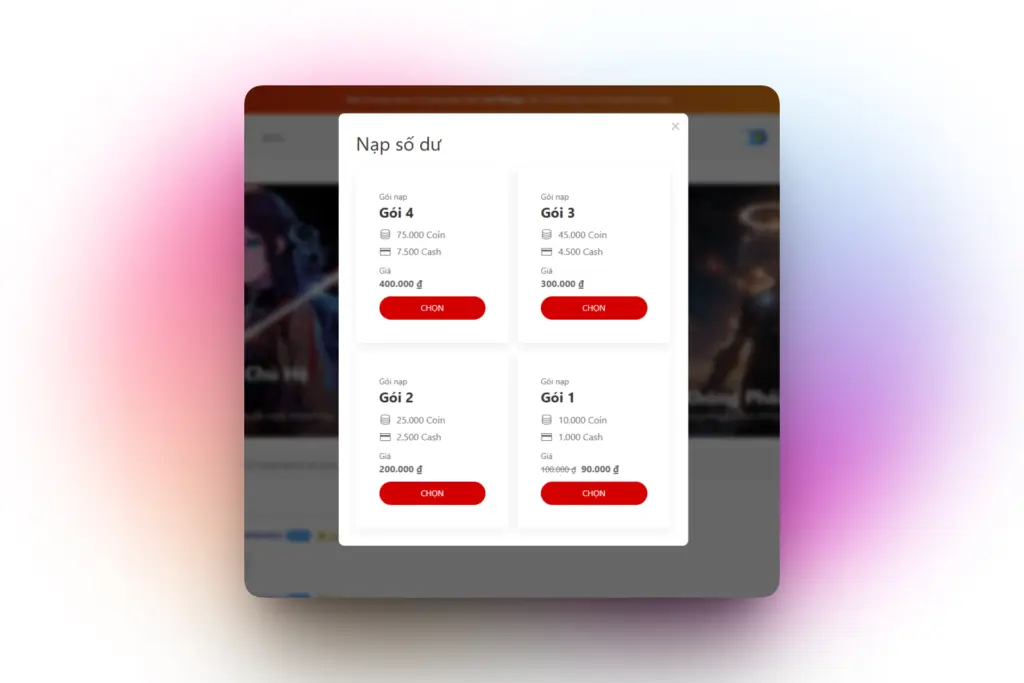
Once at least one valid top-up product exists:
- The account info bubble displays a Top Up option.
- Clicking it opens the top-up modal.
- The system fetches available packages via REST API.
- User selects a package → automatically redirected to WooCommerce Checkout.
- After successful payment → Coin/Cash is credited automatically.
The entire process is automated, provided the payment gateway returns correct payment statuses.
6. Operational Considerations
This feature involves real financial transactions. Operational monitoring is strongly recommended.
- Payment gateways may experience temporary downtime.
- Webhook callbacks may be delayed or fail.
- Users may report delays in balance updates.
Best practices:
- Regularly monitor WooCommerce order statuses.
- Manually verify disputed transactions when necessary.
- Thoroughly test the payment flow before production launch.
Conclusion
By integrating WooCommerce with Init Manga’s automatic top-up system, you create a scalable and professional monetization workflow. With properly configured virtual products, payment gateways, and periodic operational checks, the system can run reliably and efficiently in production.










Comments