
Many online tools allow you to paste an image from your clipboard, but that’s usually where the convenience ends. Features like arrows, blur tools, annotations, or numbered steps are often hidden behind premium plans or require switching to another application.
Init Clipboard Image was built for a different workflow. No software installation. No account registration. No image uploads. Just press Ctrl + V, annotate your screenshot, and continue with your work.
From Screenshot to Finished Image in Seconds
Using Init Clipboard Image feels surprisingly straightforward.
Paste an image, select a tool, make your annotations, then either copy the result back to your clipboard or download it. That’s it.
There are no complicated menus to learn and no unnecessary features competing for your attention.
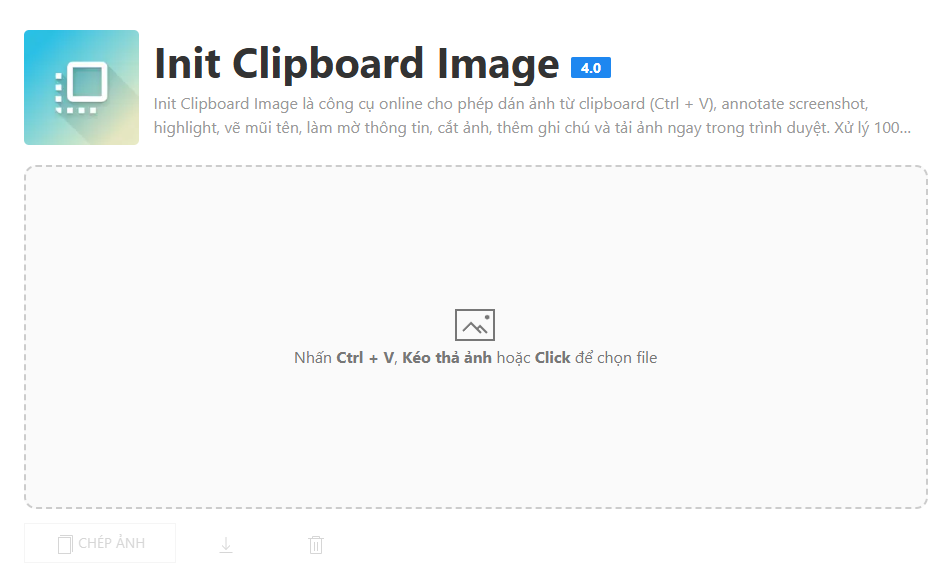
This makes the tool especially useful when working with screenshots that need to be shared quickly through Slack, Discord, Teams, Jira, Trello, email, or support tickets.
The entire workflow revolves around a simple concept:
Paste → Annotate → Copy or Download.
More Than Just a Clipboard Image Tool
Being able to paste an image is useful, but it’s only the first step.
The real challenge is communicating information clearly once the screenshot is in front of you.
Init Clipboard Image includes the tools most people actually need when working with screenshots.
- Highlight important content.
- Draw arrows to direct attention.
- Mark mistakes with X annotations.
- Outline areas using rectangles.
- Blur sensitive information.
- Crop images instantly.
- Add numbered step markers.
- Insert text notes directly on the image.
Individually, these tools are simple. Combined together, they make screenshots significantly easier to understand.
Sometimes an Arrow Explains More Than a Paragraph
Many workplace conversations become unnecessarily long because people are looking at the same screen but focusing on different things.
A screenshot with a highlighted area, an arrow, and a short note often communicates more effectively than several paragraphs of explanation.
That is why developers, QA engineers, designers, support agents, and project managers rely heavily on screenshot annotation tools in their daily workflow.
Protect Sensitive Information Before Sharing
Screenshots frequently contain information that should not be publicly visible.
Email addresses, phone numbers, customer details, API keys, access tokens, and internal company data often appear in screenshots without people noticing.
With the Blur tool, sensitive information can be hidden directly inside the browser before the image is shared.
Once editing is complete, the image can be copied or downloaded immediately without involving third-party image hosting services.
Create Step-by-Step Tutorials Faster
Anyone who writes tutorials or onboarding documentation knows how useful numbered instructions can be.
The Step Marker tool allows numbered labels to be added directly onto a screenshot with a single click.
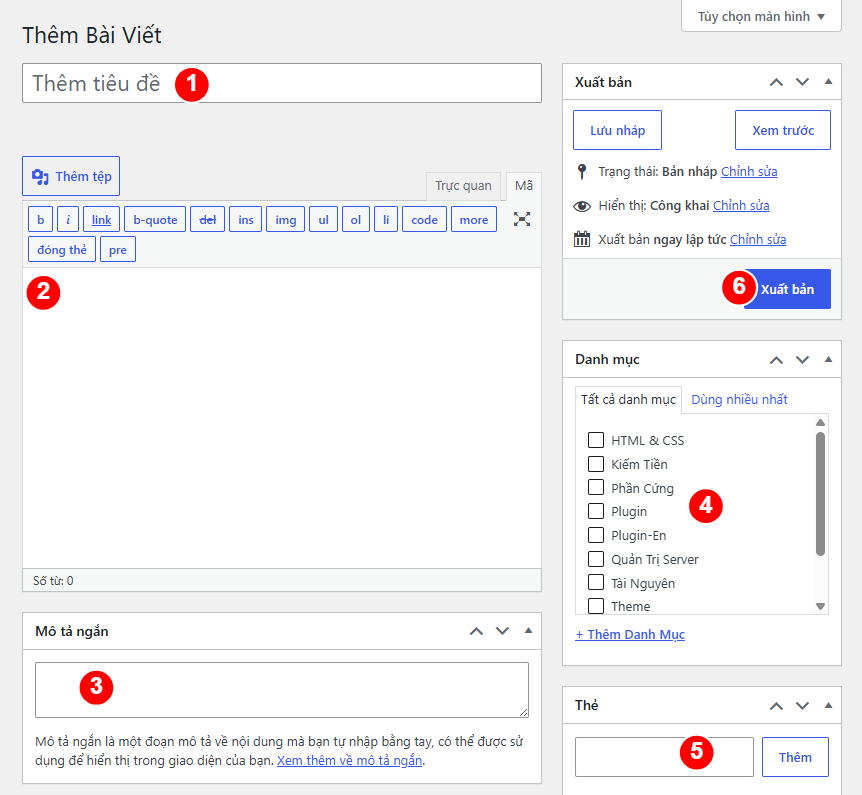
This is particularly useful for software documentation, training materials, internal guides, and customer support instructions.
Built for Speed, Not Complexity
Init Clipboard Image is not trying to become Photoshop in the browser.
Its goal is much simpler: help people annotate screenshots as quickly as possible.
The interface stays intentionally minimal, keyboard shortcuts are easy to remember, and the most common actions are always within reach.
Instead of spending time learning the tool, users can focus on completing the task.
100% Client-Side Processing
One of the most important aspects of Init Clipboard Image is that all image processing happens directly inside the browser.
Images do not need to be uploaded to a server before editing. This improves both speed and privacy, especially when working with confidential screenshots or internal business information.
The screenshot stays on the user’s device throughout the entire editing process.
Who Is It For?
- Developers creating bug reports.
- QA engineers documenting issues.
- Designers reviewing user interfaces.
- Content creators producing tutorials.
- Teachers and trainers preparing learning materials.
- Support teams explaining workflows to customers.
- Anyone who regularly works with screenshots.
Final Thoughts
Not every task requires a full-featured image editor.
Sometimes all that’s needed is a fast way to paste a screenshot, add a few annotations, hide sensitive details, and share the result.
That is exactly what Init Clipboard Image is designed to do.
Try Init Clipboard Image today and experience a faster way to work with screenshots. After a few uses, it may become the first tool you open whenever you need to explain something visually.








Comments