
Powered by ImageMagick WASM, all image processing happens entirely in your browser — no upload, no server, no one sees your images. Supports 100+ formats (JPEG, PNG, WebP, AVIF, GIF, BMP, TIFF, RAW), with batch resize, adjustable compression quality, and auto ZIP export. Just drag and drop images, choose output format, hit Convert — a ZIP file with all processed images downloads instantly. No account required.
Key Features
Init Image Converter focuses on practicality: fast batch processing, privacy, and full control over your files.
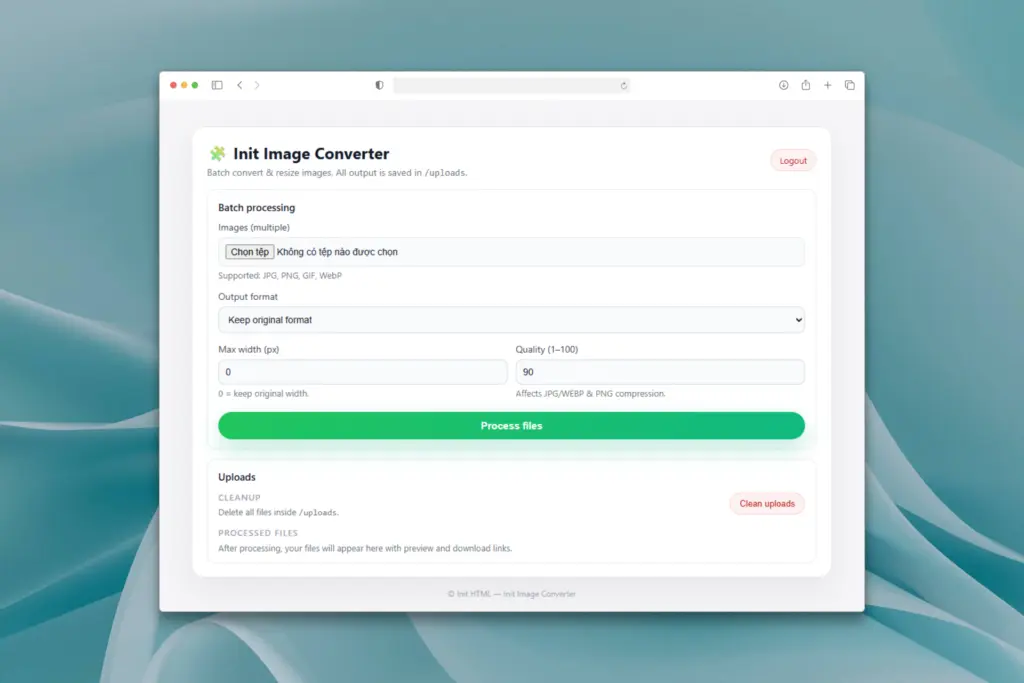
- Clean web UI: Simple interface – log in, pick your images, choose format & size, then click “Process files”.
- Fully self-hosted: No third-party services – all files are saved locally under
/uploads. - Batch processing: Upload and convert multiple images at once, ideal for content and asset pipelines.
- Format conversion: Convert between
JPG,PNG,GIF, andWebP. - Automatic resize: Limit maximum width to shrink oversized images and speed up page loads.
- Adjustable quality: Fine-tune compression quality for JPG and WebP output.
- Automatic preview: See processed images with size, dimensions, and format right in the UI.
- Flexible download: Download each processed file individually or grab everything as a single ZIP archive.
- Quick cleanup: One-click cleanup to remove all files inside
/uploads. - Login protection: Simple username/password authentication with brute-force rate limiting.
- CSRF protection: All critical actions are protected by CSRF tokens.
- Saved preferences: Last-used settings (output format, max width, quality) are stored using LocalStorage.
Version Information
- Version: 2.0.0
- Last updated: 2026-06-18
System Requirements
- PHP: 7.4 or higher (PHP 8+ recommended).
- Extensions:
gd(image processing),fileinfo(MIME detection),zip(for “Download all as ZIP”). - Write permissions: The
uploads/directory must be writable (chmod 755or775). - Browsers: Optimized for Chrome, Firefox, and Edge.
Installation & Configuration
Once you’ve downloaded init-image-converter.php, setup is straightforward:
- Upload the file to your server (e.g.
https://your-domain.com/init-image-converter.php). - Open it in your browser – you’ll see the login screen.
- Configure your login credentials at the top of the file:
define('USERNAME', 'admin');
define('PASSWORD', 'Admin@123'); // Supports plain text or password_hash
- Log in with the configured username and password.
- Select multiple images you want to convert or resize.
- Choose the output format, max width, and quality.
- Click “Process files”.
- Preview the processed images and download them individually or as a ZIP.
To generate a strong password or a password_hash, you can use the
Init Password Generator.
How Init Image Converter Works
After processing, each image entry in the table includes:
- The converted file name.
- Resulting dimensions (width × height).
- File size in a human-readable format.
- Output format (JPG / PNG / GIF / WebP).
- Links to Open and Download the file.
You can also use the “Download all as ZIP” button to fetch all processed files in a single archive, based on the last batch you ran.
Security & Storage
- All images are stored exclusively inside the
/uploadsdirectory on your server. - All critical actions (processing, cleanup, bulk download) are protected by CSRF tokens.
- Login attempts are rate-limited to reduce brute-force attacks.
- No data is sent to external services — everything is offline & private.
- No heavy JavaScript frameworks are used; the UI is lightweight and focused.
Quick Usage Tips
- Place the file in a dedicated folder, such as
/tools/or/admin/. - Optionally rename it to
converter.phpor similar for a shorter URL. - Bookmark the URL in your browser for quick access.
- Works great on local environments (XAMPP, Laragon, etc.) for offline workflows.
Example Workflow
- Open
https://your-domain.com/init-image-converter.php. - Log in.
- Select 10 PNG images.
- Set max width to 1280px, choose WebP as output, and set quality to 90.
- Click “Process files”.
- Download all processed images using the ZIP button.
Why Not Use an Online Converter?
| Criteria | Online converters | Init Image Converter |
|---|---|---|
| Third-party dependency | Yes | No |
| Data privacy | Potential risk | Fully private |
| File size limits | Often limited | Depends on your server |
| Batch processing | Restricted or paid | Designed for batch use |
| ZIP download | Not always available | Built-in “Download all as ZIP” |
| Cost | May require subscription | 100% free |
Directory Structure Example
/init-image-converter.php
/uploads/
    ├── image_1700000001_0.webp
    ├── image_1700000001_1.webp
    ├── image_1700000001_2.webp
Technical Notes
- Supported input formats:
jpg,jpeg,png,gif,webp. - Animated GIFs are currently treated as static (first frame).
- You can easily extend the script with custom logic: watermarking, thumbnails, or advanced optimization via GD or Imagick.
- Ideal as an internal tool for your team, your blog, or any self-hosted workflow.
Init Image Converter is the perfect tool if you want fast, private, and fully controlled image conversion and resizing — no cloud lock-in, no hidden limits, just a simple PHP file that gets the job done.









Comments