
Main Features
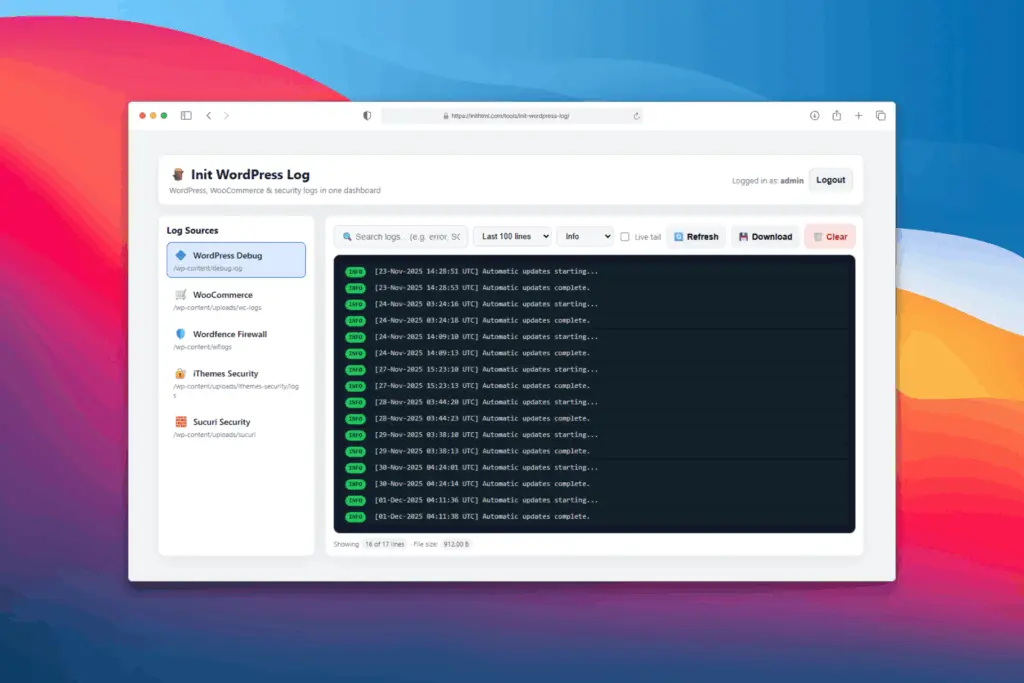
Init WordPress Log is built for developers, agencies, and administrators who need fast, safe access to WordPress logs:
- WordPress-focused: Only reads logs inside
wp-content. Does not access/var/logor system-level directories. - Multiple log sources supported:
- WordPress Debug:
wp-content/debug.log - WooCommerce: automatically selects the latest
.logfile fromwp-content/uploads/wc-logs - Wordfence:
wp-content/wflogs - Solid Security:
wp-content/uploads/ithemes-security/logs - Sucuri:
wp-content/uploads/sucuri
- WordPress Debug:
- Modern UI: Source list in the sidebar, console-style log viewer with severity highlighting.
- Level filtering: Quickly filter Error, Warning, Notice, Info.
- Keyword search: Live search with debounce to filter recent log entries (e.g.,
SQLSTATE,Fatal error,security). - Live Tail: Automatically refresh logs every few seconds (default: 3s).
- Line limit control: View last 100 / 500 / 1000 lines for performance.
- Download & Clear: Download the raw resolved log or clear its contents (if writable).
- Developer-friendly UI: Auto-scroll, line count, file size, clean formatting.
- State persistence: Remembers selected source, line count, level filter, and search keyword via localStorage.
Security-first by design:
- Restricted log directories: Only logs within allowed paths (default:
wp-content,uploads). - Path trimming: Display paths only from
/wp-content/...— prevents leaking absolute server paths. - Authentication required: Dedicated login page.
- Secure sessions: HttpOnly cookies, SameSite=Strict, Secure mode for HTTPS.
- CSRF protection: Token-based protection for login and destructive actions.
- Brute-force defense: Login rate limiting + temporary lockout.
Version Information
- Version: 1.0.0
- Updated: 2025-12-01
System Requirements
Your environment should meet the following requirements:
- PHP: 7.4+, recommended PHP 8+
- Extensions:
json,mbstring(common on most providers) - Sessions: PHP sessions must be enabled
- File permissions: Read access to log files; write access if using the “Clear” function
- WordPress environment:
wp-contentmust be in the same project root
Installation & Configuration
Basic installation steps:
- Extract
init-wordpress-loginto the WordPress project root:/wp-config.php /wp-content/ /init-wordpress-log/ index.php /includes /assets - Edit
includes/config.phpand set login credentials:'username' => 'admin', // Option 1: plain text password 'password' => 'password', // Option 2: password_hash (preferred if provided) // Example: // 'password_hash' => password_hash('Your-Strong-Password', PASSWORD_DEFAULT), 'password_hash' => '',To create a strong password or generate a valid password_hash for PHP authentication, use the official tool Init Password Generator.
- Verify and adjust log paths:
$WP_ROOT = dirname(__DIR__, 2); $WP_CONTENT = $WP_ROOT . '/wp-content'; $WP_UPLOADS = $WP_CONTENT . '/uploads'; 'allowed_log_dirs' => [ $WP_CONTENT, $WP_UPLOADS, ], 'sources' => [ [ 'id' => 'wp_debug', 'label' => 'WordPress Debug', 'path' => $WP_CONTENT . '/debug.log', 'type' => 'wordpress', 'icon' => '🔷', ], [ 'id' => 'woo_latest', 'label' => 'WooCommerce (Latest Log)', 'path' => $WP_UPLOADS . '/wc-logs', 'type' => 'woocommerce', 'icon' => '🛒', ], // ... ], - Enable WordPress debug logging if needed:
define( 'WP_DEBUG', true );
define( 'WP_DEBUG_LOG', true );
// Optional: Disable on-screen errors
define( 'WP_DEBUG_DISPLAY', false );
Other security and performance settings:
'session_timeout'    => 3600,  // 1 hour
'force_https'        => false, // set true to enforce HTTPS
'login_max_attempts' => 5,     // attempts before lockout
'login_lockout_time' => 600,   // 10 minutes

'max_lines'        => 1000,
'max_file_size'    => 50 * 1024 * 1024, // 50MB
'refresh_interval' => 3,               // seconds for live tail
Usage Examples
Common use cases:
- View debug.log:
Visit:
https://example.com/init-wordpress-log/
Login → choose WordPress Debug → inspect PHP errors, notices, deprecated warnings. - Debug WooCommerce issues:
Select WooCommerce (Latest Log) and search for keywords likeCRITICAL,SQLSTATE,Webhook. - Monitor security events:
Choose Wordfence, Solid Security, or Sucuri and enable Live Tail. - Focus on specific severity:
Use the “All levels / Error / Warning / Notice / Info” selector. - Download logs:
Click Download to export the raw file. - Clear logs after fixing issues:
Click Clear (CSRF-protected, confirmation required).
How It Works
Init WordPress Log follows a clear workflow:
- Receives request from UI or AJAX.
- Validates session, timeout, and (where needed) CSRF token.
- Resolves the log path based on the selected source.
- Ensures the resolved path is inside
allowed_log_dirs. - Reads the file tail (or search result).
- Attempts to parse timestamps, log levels, messages; maps them to color-coded CSS classes.
- Returns JSON output for the frontend to render.
- For downloads, sends the raw file with
Content-Disposition.
Best Practices for Production
To use Init WordPress Log safely in production:
- Place in a non-obvious folder: e.g.,
/tools/init-wp-log/ - Add another protection layer: HTTP Basic Auth, IP allowlist, VPN, or firewall rules.
- Enable only when needed: Use on staging/dev or restrict on production.
- Remove unused sources: Keep only the log types you need.
Conclusion
Init WordPress Log is a lightweight, purpose-built log viewer for WordPress. Instead of SSHing into the server and opening multiple log files manually, you get a single, unified interface to monitor: debug.log, WooCommerce logs, firewall logs, and security plugin logs.
With restricted directory access, secure session handling, CSRF protection, rate limiting, and a developer-friendly UI, it reduces risk while speeding up troubleshooting. Perfect for developers, freelancers, agencies, internal teams, and anyone maintaining WordPress sites.
If you need a log viewer that is: self-hosted, WordPress-aware, safe, and easy to deploy — Init WordPress Log is the ideal solution in the Init HTML toolkit.
Install it, configure your log sources, and start debugging WordPress the easy way.









Comments